

Guide to Digital Accessibility: POUR, Semantic HTML and a Junior's Checklist
The four POUR principles, the checklist every junior developer should know, and how to build accessibility in from the first line, with a real before-and-after fix.

Told by Sanjaya, with Kai asking the questions
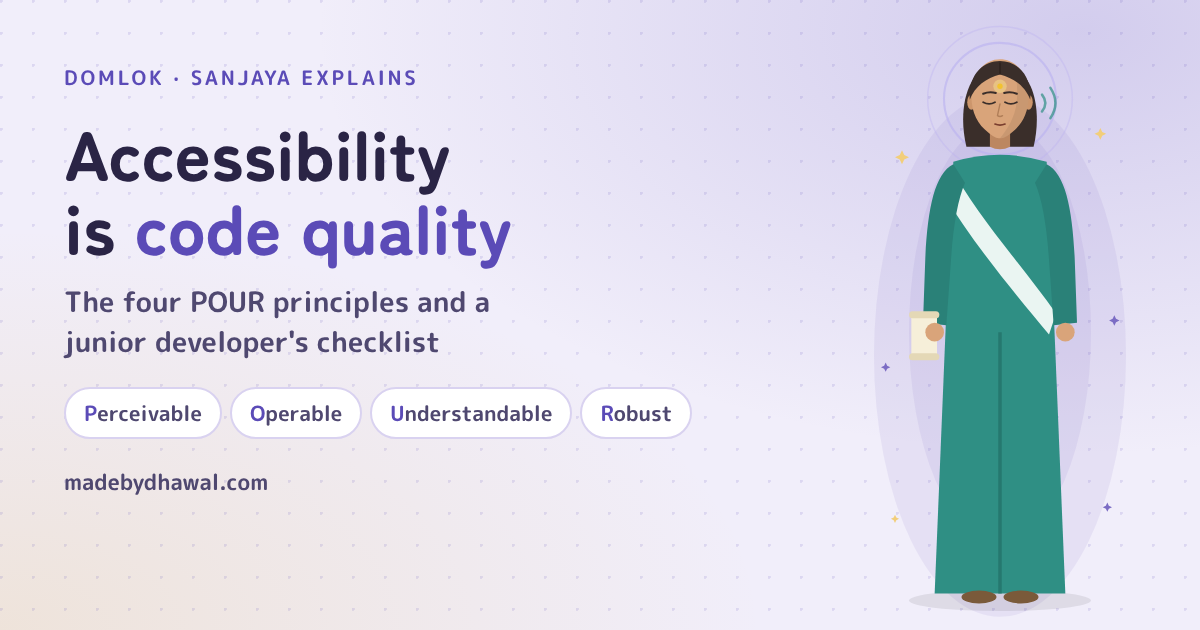
Sanjaya: A page is a world, Kai. My job is to describe it to everyone who visits, including the ones who can't see it, can't use a mouse, or can't read it the way you do.

After twenty years of building for the web, the biggest shift I've seen isn't a framework. It's universal design: accessibility built into the foundation, not bolted on in a final audit. You wouldn't design a building and add the ramp after the opening ceremony. Pages are no different.
This guide walks through what accessibility means in practice: the four POUR principles, the checklist every junior developer should know by heart, and how to work accessibility-first from day one.
The Veil falls on Kai's checkout
Kai has just built a product card. It looks great. He tested it with his mouse, on his monitor, with his eyes.
<img src="IMG_2041.jpg" />
<input placeholder="Email" />
<div class="btn" onclick="buy()">Buy now</div>
<style>
*:focus {
outline: none;
} /* "the blue ring looked ugly" */
</style>KaiPixel-perfect. Ship it!
SanjayaLet me tell you what the rest of your visitors get. A screen reader announces "IMG underscore 2041 dot jpg". The email field has no real label, and the hint vanishes as soon as someone types. The "button" can't be reached with the keyboard at all. And if someone does tab around, they can't see where they are.
Four lines, four barriers. None of them show up when you test with a mouse. That's the Veil: a page that works perfectly for the person who built it and silently fails everyone else.
The four pillars of accessibility (POUR)
The Web Content Accessibility Guidelines (WCAG 2.2 is the current version) are organised around four principles. Think of them as the four structural columns of your building.
Perceivable: can people take it in?
Information must reach at least one of the user's senses. Images need alt text that describes their purpose; purely decorative images get an empty alt="" so screen readers skip them. Videos need captions.
Operable: can people use it?
Every action must work without a mouse. If a custom component can't be reached with Tab and activated with Enter or Space, some of your users simply can't use it.
Understandable: does it make sense?
Use plain language, predictable behaviour, and explicit labels. Every form field needs a <label>; a placeholder is a hint, not a label.
Robust: does it work everywhere?
Your code must work across browsers, devices and assistive technologies, today and after their next update. Semantic HTML is what makes that possible; "div soup" is what breaks it.
Lifting the Veil: Kai's card, fixed
<img src="trail-shoe.jpg" alt="Orange trail running shoe, side view">
<label for="email">Email</label>
<input id="email" type="email" autocomplete="email">
<button type="button" onclick="buy()">Buy now</button>
<style> :focus-visible { outline: 3px solid #3D4A7A; outline-offset: 3px; } </style>- The image now says what it shows (Perceivable).
- The label is announced and stays visible while typing;
type="email"andautocompletehelp people on every device (Understandable). - A real button is focusable, works with Enter and Space, and is announced as "Buy now, button", with no extra code (Operable, Robust).
:focus-visibleshows a clear ring for keyboard users without showing it on every mouse click, so Kai keeps his clean design (Operable).

KaiWait, I didn't need any ARIA for that?
SanjayaNone. The right element already speaks. Reach for ARIA only when no native element does the job, and then follow the patterns exactly.
The junior's checklist
1. Semantic HTML is your most powerful tool
<div> and <span> carry no meaning. Use <button> for actions, <a href> for navigation, and landmarks so screen reader users can jump straight to the part they need:
<header>…</header><nav aria-label="Main">…</nav><main><h1>Trail shoes</h1><h2>Reviews</h2></main><footer>…</footer>
2. Keep a logical heading order
Headings are the page's table of contents, and many screen reader users navigate by them. Use one <h1>, don't skip levels (no jumping from <h2> to <h4>), and never pick a heading level for its font size. That's what CSS is for.
3. Check colour and contrast
WCAG AA asks for a contrast ratio of at least 4.5:1 for normal text and 3:1 for large text and for interface parts like input borders and focus rings. Light grey text on white is the most common failure on the web. Chrome DevTools shows the ratio in the colour picker, and Lighthouse and WAVE flag failing pairs. Also, never use colour alone to carry meaning: pair the red error border with an icon or text.
4. Never remove focus rings, restyle them
outline: none with nothing in its place leaves keyboard users lost. If the default ring clashes with your design, restyle it with :focus-visible as shown above. Don't delete it.
An accessibility-first workflow
- Unplug your mouse. Spend ten minutes using your wireframe, or a competitor's site, with only the keyboard. Can you reach everything? Can you always see where you are?
- Automate early. Run the Lighthouse accessibility audit (or axe) as you build each component, not at the end. Aim for 100, but remember that automated tools catch only some issues. A perfect score doesn't mean the page is accessible.
- Listen to your page. Turn on VoiceOver (macOS, iOS), NVDA (Windows, free) or TalkBack (Android) and go through your key flow once. You'll find things no tool reports.
- Follow the patterns for custom components. Building a dropdown, tabs or a modal? Use the WAI-ARIA Authoring Practices Guide for the exact roles, states and keyboard behaviour.

KaiReal elements, real labels, visible focus. The Veil's gone, and my card still looks good!
Conclusion
Great frontend work isn't about using the newest framework. It's about building something everyone can use. The good news: most of it is simply using HTML the way it was designed, from the very first line.
Acharya's Rule #5Accessibility is code quality. Build it in from the first line, not in the final audit.

Frequently asked questions
What are the four POUR principles of accessibility?
Perceivable, Operable, Understandable and Robust. WCAG is organised around them: people must be able to perceive the content, operate the interface, understand it, and use it across browsers and assistive technologies.
What contrast ratio does WCAG AA require?
At least 4.5:1 for normal text, and 3:1 for large text and for interface parts such as input borders and focus indicators.
Is it OK to remove the focus outline?
Only if you replace it with a clearly visible style. Use :focus-visible to show a custom focus ring for keyboard users without showing it on every mouse click.
Does a Lighthouse score of 100 mean my site is accessible?
No. Automated tools catch only some issues. Combine them with keyboard-only testing and a pass with a screen reader such as VoiceOver, NVDA or TalkBack.
When should I use ARIA?
Only when no native HTML element does the job. A real button, link or label already has the right role and keyboard behaviour. For custom widgets, follow the WAI-ARIA Authoring Practices Guide.