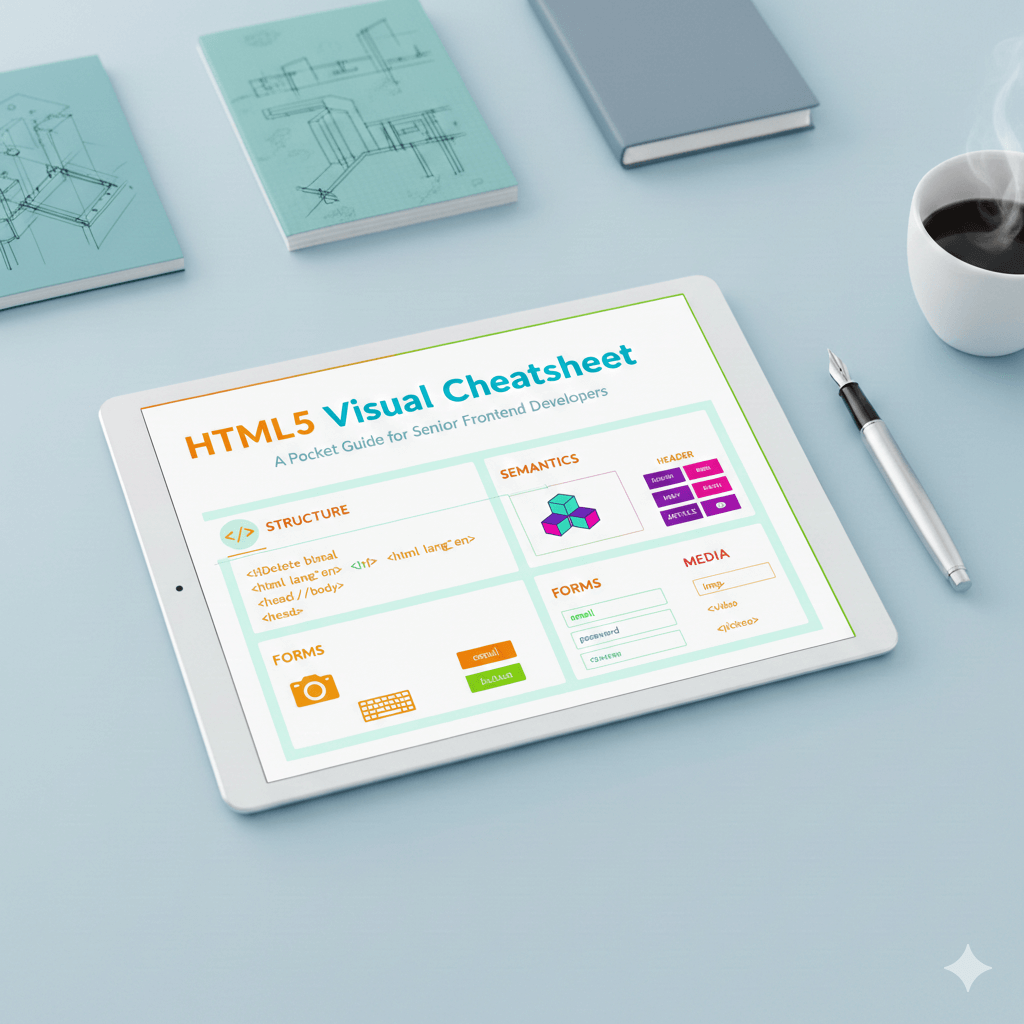
In a world dominated by JavaScript frameworks, it’s easy to treat HTML as a mere "compile target." However, clean, semantic HTML remains the most critical layer for accessibility (A11y), SEO, and browser performance. As an architect, you know that a well-structured document reduces technical debt and ensures that the browser’s accessibility tree is built correctly from the first byte. This guide covers the essential syntax and modern standards you need at your fingertips.
The Root Document Structure
Every professional project starts with a clean boilerplate to ensure consistent rendering across browsers.
<!DOCTYPE html>: Declares the document as HTML5.<html lang="en">: Essential for screen readers and localization.<head>: Contains metadata, title, and links to assets.<title>: The text shown in the browser tab.<meta>: Character set, viewport(for mobile responsive), and SEO keywords.<body>: The visible content of the page.
Semantic Layout Elements
Stop the "div-itis." Use these to define the document's structure for search engines and assistive technologies.
| Tag | Best Use Case |
<header> |
Site branding, navigation, or introductory section content. |
<nav> |
Main site navigation or a table of contents. |
<main> |
The unique primary content of the body. Only one per page. |
<article> |
Independent, reusable content (Blog posts, cards, news). |
<section> |
Groups related content together (usually with a heading). |
<aside> |
Indirectly related content (sidebars, callouts). |
<footer> |
Copyright, contact info, or secondary links. |
Essential Text & Data
Headings:
<h1>(Main Title) through<h6>.Lists:
<ul>(unordered),<ol>(ordered), and<li>(item).Descriptions:
<dl>(list),<dt>(term), and<dd>(description).Links:
<a href="URL" target="_blank" rel="noopener">(Userelfor security).Table:
<table>,<tr>(row),<td>(cell), and<th>(header cell).
Interactive Forms
Modern forms rely on specific types to trigger the correct mobile keyboards and validation.
Form:
<form>The container for all input elements.Inputs:
<input type="...">(e.g.,email,tel,number,range,color).Labels:
<label for="id">(Crucial for clicking/accessibility).Textarea:
<textarea>For multi-line text input.Select:
<select>Dropdown menus.Buttons:
<button type="submit">vs<button type="button">.Grouping:
<fieldset>to group inputs with a<legend>title.
Media & Embedded Assets
Images:
<img src="..." alt="Description" loading="lazy">.Figures:
<figure>wraps media,<figcaption>provides the label.Video/Audio:
<video controls>/<audio controls>.Responsive:
<picture>with<source>tags for different screen sizes.
Essential Global Attributes
class: For styling multiple elements with CSS.
id: A unique identifier for one specific elememt.
style: Inline CSS (not recommended for large projects).
title: Extra info shown on hover (tooltip).
- hidden: Hides the element from the page.
Conclusion
The hallmark of a senior frontend isn't knowing every obscure tag, but knowing how to use Semantic HTML to create a meaningful document outline. By prioritizing tags like <main>, <nav>, and <article> over generic <div> containers, you improve SEO, make your CSS more predictable, and ensure your site is usable by everyone.