Raiden’s Throttle: debounce vs throttle, and why your search box sends six requests
Type one word, send six requests. Raiden, Domlok's Lightning guide, calms the Storm of Requests with debounce for search boxes and throttle for scroll handlers, and shows the React mistake that undoes both.

Told by Raiden, with Kai asking the questions
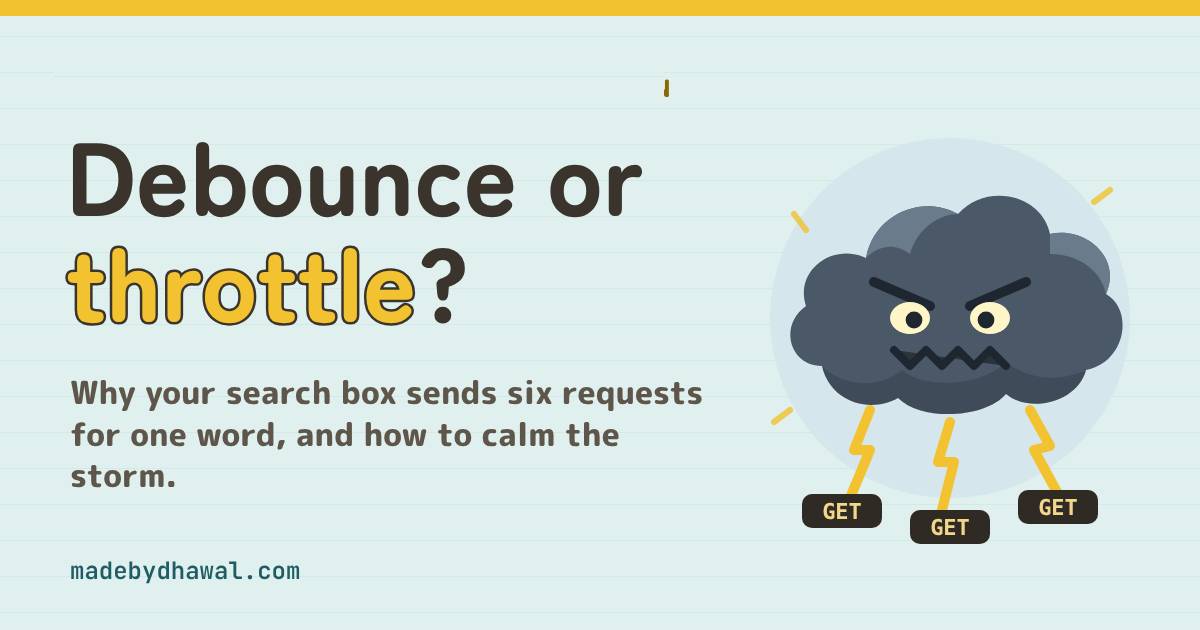
Raiden: Count the bolts, Kai. You typed six letters, and you threw six bolts at the server.

In the world of Domlok this is the Storm of Requests, a thundercloud that grows a little darker with every keystroke. It never throws an error. It just fills your Network tab, burns through your API quota and makes the results flicker.
Your guide for this episode is Raiden, the Lightning guide of Domlok and keeper of events, timers and the JavaScript runtime. A thunder spirit knows better than anyone that not every flicker deserves a bolt, which makes him the right one to tame this storm. Kai, as usual, is the one who summoned it: he wired his search box straight to fetch.
The storm gathers
Kai’s scroll library has a search box. He listens for input and searches on every change:
const input = document.querySelector('#q');
input.addEventListener('input', (e) => {
search(e.target.value); // every keystroke
});
async function search(q) {
const url = '/api/search?q=' + encodeURIComponent(q);
const res = await fetch(url);
render(await res.json());
}
KaiIt works. I type, the results show up. What’s the problem?
input event fires every time the field’s value changes. Type katana and here is what leaves the browser:
GET /api/search?q=kGET /api/search?q=kaGET /api/search?q=kat, thenkata, thenkatan…GET /api/search?q=katana: the only one Kai wanted.
RaidenSix bolts for one word, and five of them for words nobody asked for. Multiply that by every visitor and the server starts answering 429 Too Many Requests. Worse, the answers can land out of order, so an old one paints over a new one. That last storm gets its own episode.
Debounce: wait for the quiet
A debounced function waits until calls stop for a set time, then runs once with the latest arguments. Each new call cancels the pending one and starts the wait again.
function debounce(fn, ms) {
let id;
return (...args) => {
clearTimeout(id);
id = setTimeout(() => fn(...args), ms);
};
}
const debouncedSearch = debounce(search, 300);
input.addEventListener('input', (e) => debouncedSearch(e.target.value));
Each keystroke clears the timer and starts a new 300 ms one. As long as Kai keeps typing faster than that, the timer never finishes. When he pauses, it fires once, with katana. Six keystrokes, one request. Around 300 ms is a common starting point for search; tune it for your users.

KaiSix keystrokes, one request. For the word I actually meant!
Throttle: one bolt per beat
KaiGreat, I’ll debounce my scroll progress bar too.
RaidenThen the bar freezes while you scroll and jumps only when you stop. Some work has to keep happening during the move. That needs a throttle.
function throttle(fn, ms) {
let last = 0;
return (...args) => {
const now = Date.now();
if (now - last >= ms) {
last = now;
fn(...args);
}
};
}
window.addEventListener('scroll', throttle(updateProgress, 100));
Scroll events can fire at a high rate. Throttled to 100 ms, updateProgress runs at most ten times a second, and it keeps running for as long as the user scrolls.
This small throttle only fires on the leading edge, so the last call in a burst can be dropped. If the final position matters, add a trailing call. Lodash’s throttle calls on both edges by default, and its debounce has leading, trailing and maxWait options plus cancel() and flush(). One more tip from MDN: throttling a scroll handler with requestAnimationFrame() doesn’t help, because animation frame callbacks fire at the same rate as scroll events. Measure the interval yourself, as above.
Wait, or pace?
| What you are handling | Use | Why |
|---|---|---|
| Search suggestions as you type | Debounce | Only the finished word matters |
| Autosave a draft | Debounce | Save once the user pauses |
| Validating a field | Debounce | Don’t shout errors mid-word |
| Recalculating after a window resize | Debounce | Only the final size matters |
| Scroll progress bar | Throttle | It must move during the scroll |
| Infinite-scroll “near the bottom?” check | Throttle | Check regularly while scrolling |
Drag, pointermove, mousemove |
Throttle | Feedback has to follow the pointer |
| “Is this element on screen yet?” | Neither | Use IntersectionObserver |
If the work should happen after they stop, debounce. If it should keep happening while they move, throttle.
The storm in React
KaiI called debounce inside my React component and it still sends six requests.
function SearchBox() {
const [q, setQ] = useState('');
const debounced = debounce(search, 300);
}
Every keystroke calls setQ, every render runs the component again, and every render builds a brand-new debounced function with its own timer. Nothing ever clears the previous timer, so all six calls fire. Create the debounced function once, and cancel any pending call when the component unmounts:
import debounce from 'lodash/debounce'; // has .cancel()
function SearchBox() {
const [q, setQ] = useState('');
const debounced = useMemo(() => debounce(search, 300), []);
useEffect(() => () => debounced.cancel(), [debounced]);
return < input value = { q } onChange = { (e) => {
setQ(e.target.value);
debounced(e.target.value);
}
}
}
Here search is a module-level function, so the empty dependency list is correct. A useRef works too: refs keep their value between renders without causing a re-render.
Count the bolts in DevTools
1. Count the requests. Open Chrome DevTools, go to the Network panel and click the Fetch/XHR filter. Type a word into the search box. The status bar at the bottom shows how many requests are listed: six before the fix, one after it.
2. Count the calls. For handlers that don’t hit the network, count them:
const updateProgress = () => {
console.count('scroll handler'); // ...update the bar
}; // scroll for two seconds: throttled to 100 ms, // the count should be about 20, not hundredsKaiOne bolt where there were six. The storm is breaking!
Before you merge an input handler
- Does this handler fire on every keystroke, scroll, resize or pointer move?
- Should the work happen after the user stops (debounce) or while they move (throttle)?
- In React, is the debounced or throttled function created once, not on every render?
- Is any pending call cancelled when the component unmounts?
- Does the Network panel show one request per finished word?
Next episode: The Lost Focus. Where keyboard focus goes when your single-page app changes route or opens a modal, and how to move it on purpose.Acharya's Rule #13Debounce until they stop. Throttle while they move.

Think you can calm the storm yourself? Play Raiden’s Throttle on domlok.in and earn seal 13.
Watch the episode on YouTube at @dom-lok and save the carousel on Instagram at @mbd.domlok.
Further reading
- MDN: Debounce
- MDN: Throttle
- MDN: Document scroll event
- React docs: useRef
- Chrome DevTools: Network features reference