Why won’t my form autofill? label, input type & autocomplete (The Nameless Field)
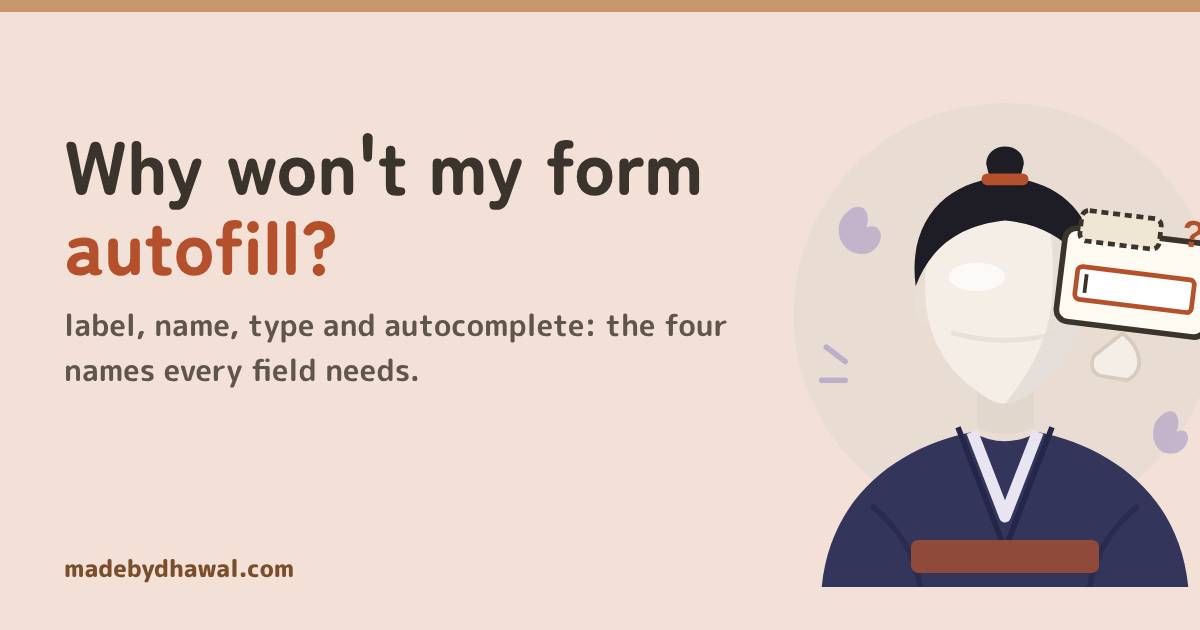
Kai's sign-up form won't autofill, shows letters for a phone number and sends the server nothing. Vishwa, Domlok's builder of HTML, gives every field a label, a name, the right type and an autocomplete token, and the Noppera-bō loses its disguise.

Told by Vishwa, with Kai asking the questions
Vishwa: Every stone I lay has a name carved into it, Kai. Your form has three stones and not one name.

If your form won’t autofill, the phone shows the wrong keyboard, or your server receives empty fields, the fields are probably missing the things the browser reads: a <label>, a name, the right type and an autocomplete token. Add those four and the browser fills, checks and sends the form for you.
In the world of Domlok this is the work of the Noppera-bō, the faceless yokai. It wears fields that look perfect on screen but have no face for anything else to recognise: no label for a screen reader, no name for the server, no hint for autofill.
Your guide for this episode is Vishwa, the Earth guide of Domlok and the builder of its walls. He owns HTML and semantics, and a form is pure HTML: every fix in this post is an attribute or an element, with almost no JavaScript. Kai, as usual, built the form that the Noppera-bō moved into.
Kai’s nameless form
Kai’s sign-up page has an email field, a phone field and a box for the code that arrives by SMS. It looks fine:
<form action="/signup" method="post">
<p>Email</p>
<input placeholder="you@mail.com" />
<p>Phone</p>
<input type="number" />
<p>Code</p>
<input /> <button>Sign up</button>
</form>KaiAutofill offers nothing, my phone shows letters for the phone number, and the server says the form was empty. But I can see every field!
You can see them. The browser can’t tell what any of them are. Let’s give each field its names, one at a time.
1. A label, not a paragraph
The word “Phone” sits next to the input, but a <p> isn’t connected to anything. A screen reader reaches the phone field and announces only “edit text”. A <label> whose for matches the input’s id fixes that:
<label for="phone">Phone</label> <input id="phone" name="phone" type="tel" />
<!-- or wrap the input, no for/id needed -->
<label>Phone <input name="phone" type="tel" /></label>
Now the field has an accessible name (“Phone, edit text”), and clicking or tapping the label focuses the input, so the target gets bigger too.

KaiMy email field has a placeholder that says you@mail.com. Isn’t that a label?
VishwaA placeholder is a hint, not a label. It disappears the moment someone types, so they can no longer see what the field was for. Keep a real label, and use the placeholder for an example, if at all.
2. A name, or the value is never sent
When a form submits, the browser sends name=value pairs. An input with no name (or an empty one) is skipped completely. That’s why Kai’s server received nothing at all.
<label>is for people: it is read aloud and makes the field clickable.nameis for the server: it becomes the key in the submitted data and inFormData.idties the label on: it is whatforpoints to.
3. The right type, and the right keyboard
The type says what kind of value the field holds. Mobile keyboards and built-in checks follow from it. inputmode only picks the on-screen keyboard and never validates anything.
| Field | Use | What you get |
|---|---|---|
type="email" |
Keyboard with @, and a format check on submit | |
| Phone | type="tel" |
Phone keypad (no format check, because phone formats vary) |
| SMS code, card number | type="text" + inputmode="numeric" |
Digit pad, and the value stays exactly as typed |
| A real quantity | type="number" |
Up and down arrows, min, max and step |
Kai used type="number" for the phone. Don’t: it adds increment arrows and treats the value as a quantity. You never add one to a phone number.
4. Tell autofill what the data is
The autocomplete attribute names the data, so the browser and password manager can match it to what they have saved. Common tokens: name, email, tel, street-address, postal-code, username, new-password (sign-up and change-password forms), current-password (login forms) and one-time-code (the code from an SMS or authenticator app).
<form action="/signup" method="post">
<label for="email">Email</label> <input id="email" name="email" type="email" autocomplete="email" required />
<label for="phone">Phone</label> <input id="phone" name="phone" type="tel" autocomplete="tel" />
<label for="otp">Code from SMS</label>
<input id="otp" name="otp" inputmode="numeric" autocomplete="one-time-code" pattern="[0-9]{6}" required />
<button>Sign up</button>
</form>
KaiOne tap and the whole form filled itself. And the phone offered the SMS code!
5. Let the browser validate first
required stops an empty field, type="email" rejects a value with no @, and pattern must match the whole value (it is anchored for you). On submit the browser blocks the form, focuses the first invalid field and shows its message, with no JavaScript. For your own wording, use setCustomValidity() and clear it with an empty string once the value is valid:
const otp = document.querySelector('#otp');
otp.addEventListener('input', () => {
otp.setCustomValidity(otp.validity.patternMismatch ? 'Enter the 6-digit code from the SMS.' : '');
});/* :invalid matches empty required fields on page load. :user-invalid waits until the user has interacted. */
input:user-invalid {
border-color: #b5502c;
}VishwaAnd always check again on the server. The browser’s checks help the user. The server’s checks protect the data.
Find the faceless fields in DevTools
- Issues panel. Chrome DevTools flags form problems such as “No label associated with a form field” and “A form field element should have an id or name attribute”.
- Accessibility pane. In Elements, select the input and open Accessibility. If the computed Name is empty, the field has no label.
- Console. Run
[...new FormData(document.querySelector('form'))]. Every field you expect should be listed under its name. A missing one has noname.
Before you ship a form
- Does every field have a visible
<label>tied to it withforandid, or wrapped around it? - Does every field that should be sent have a
name? - Is the
typeright, with notype="number"on phones, cards or codes? - Does every personal field have an
autocompletetoken? - Do
required,typeandpatterncatch the obvious mistakes before any JavaScript runs, and does the server check again?
Acharya's Rule #23Give every field a label, a name and the right type. Let the browser do the rest.

Next episode: The Silent Toast. Why a screen reader never announces your “Saved!” message, and how aria-live regions fix it.
Think you can name the faceless fields yourself? Play Name the Nameless Field on domlok.in and earn seal 23.
Watch the episode on YouTube at @dom-lok and save the carousel on Instagram at @mbd.domlok.
Further reading
- MDN: the input element (labels, name, placeholder)
- MDN: the autocomplete attribute
- MDN: inputmode
- MDN: Constraint validation and the pattern attribute
- MDN: :user-invalid
- web.dev: Payment and address form best practices and Sign-up form best practices
- Chrome for Developers: Find form issues with Chrome DevTools