
How to Optimize LCP for Images (Interactive Lab)
Image LCP comes down to two questions: how many bytes and how soon. Optimization answers the first; preload, fetchpriority, and eager loading answer the second; decoding and reserved dimensions keep the paint and the layout clean. Tune those on your real hero image in the lab above, ship the best-practice markup, and watch your Core Web Vitals move into the green.

Told by Vayu
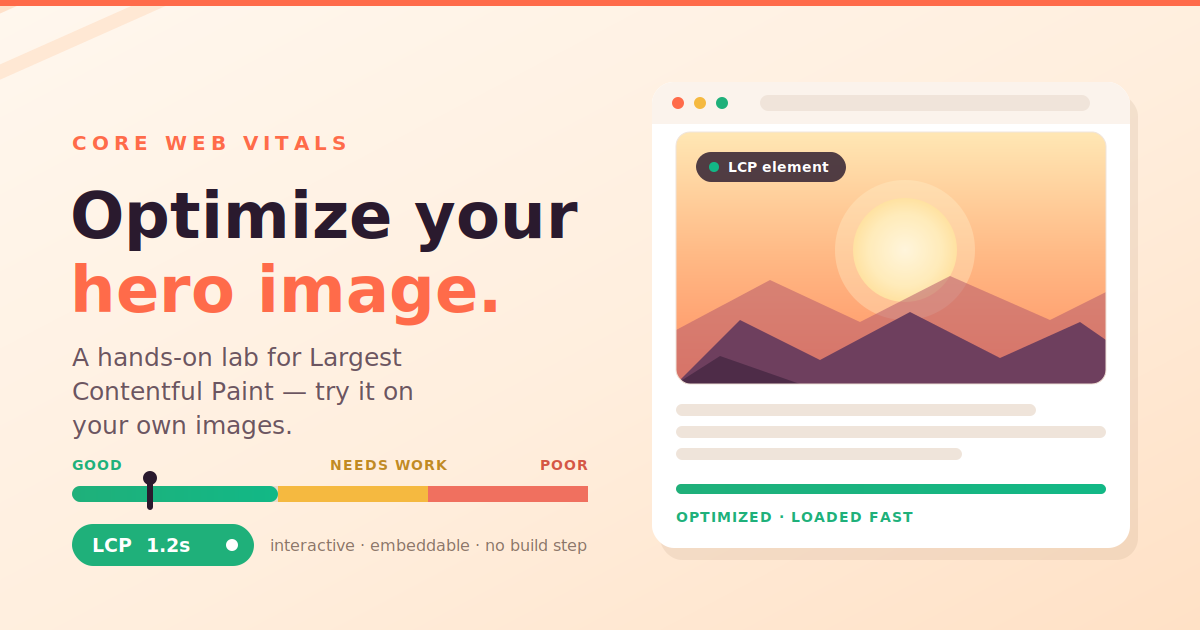
On most websites, the first thing people notice is an image—a hero banner, a product photo, or the header image of an article. More often than not, that's also your Largest Contentful Paint (LCP) element. In other words, how quickly that image appears is how fast your page feels to your visitors.
When that image is slow to load, users perceive the entire page as slow—even if everything else is already ready. That's why optimizing your LCP image usually has the biggest impact on real-world performance.
The good news is that image LCP is one of the easiest Core Web Vitals to improve. The challenge is figuring out which optimization actually makes a difference. Image format, preload, fetch priority, dimensions, compression, CDN caching, lazy loading, decoding, and several other factors all influence LCP, and it's not always obvious how they interact.
Instead of walking through a list of best practices, this post takes a more hands-on approach. You'll use an interactive lab where you can upload your own image, tweak individual settings, and instantly see how each change affects the LCP score. By the end, you'll not only know what improves LCP—you'll understand why it does.
What LCP actually measures
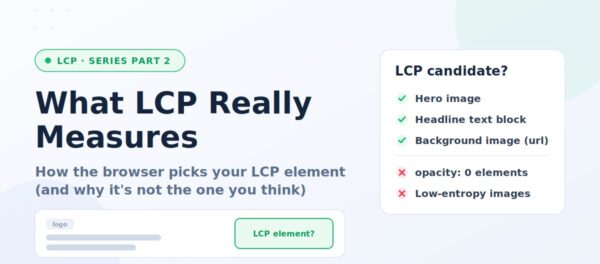
LCP is the render time of the largest image or text block visible in the viewport during load. Google's thresholds, measured at the 75th percentile of real visits, are:
- Good: 2.5 seconds or less
- Needs improvement: 2.5 – 4 seconds
- Poor: over 4 seconds
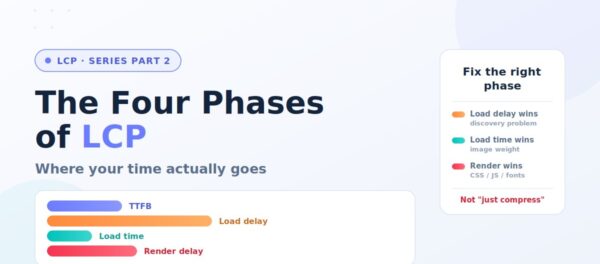
The key word is render, not download. LCP is the sum of everything between the navigation start and the moment that hero paints: how long before the browser even discovers the image, how long it takes to transfer, and how long the browser needs to decode and paint it. Each of those phases has its own controls.
Why the hero image dominates your score
A hero image taken straight from a phone or camera can easily be 2–5 MB. That might not sound like much, but on an average mobile connection, downloading a file that large can take several seconds.
Until that image finishes downloading and is painted on the screen, the browser is still waiting to display the page's largest visible element. And as long as it's waiting, LCP keeps ticking.
This is why the biggest LCP improvement usually comes from two simple principles:
- Reduce the size of the hero image.
- Start downloading it as early as possible.
Almost every image-related LCP optimization—whether it's using AVIF or WebP, compressing the image, preloading it, setting fetchpriority="high", or serving it from a CDN—is really just another way of achieving one (or both) of these goals. Once you understand that, the rest of the optimizations become much easier to reason about.
The levers that move image LCP
1. Optimization: resize and compress
The highest-impact change is shipping fewer bytes. Two moves do most of the
work:
- Resize to display size. A 4000-pixel-wide photo rendered
in an 800-pixel slot wastes ~75% of its bytes. Serve it near the size it's actually shown. - Use a modern format. WebP and AVIF are typically
25–50% smaller than an equivalent JPEG or PNG at the same visual quality.
Together these routinely cut a hero from several megabytes to a couple hundred
kilobytes — often the difference between a red and a green LCP.
2. Preload the hero
The browser can't download an image it hasn't discovered yet. If the hero lives deep in the DOM or is set via CSS/JavaScript, discovery is late. A preload hint in the <head> tells the browser to start fetching immediately:
<link rel="preload" as="image" href="/hero-1000w.webp" fetchpriority="high">This removes the discovery delay entirely — the fetch begins during head parsing rather than after layout.
3. fetchpriority
Your hero competes with scripts, stylesheets, and other images for bandwidth. fetchpriority="high" tells the browser this resource matters most and should jump the queue. On the LCP image specifically, it's one of the cheapest wins available.
4. loading — beware lazy on the hero
Lazy loading is great for below-the-fold images, but applying loading="lazy" to an above-the-fold hero is a classic self-inflicted wound: the browser deliberately defers the fetch until layout confirms it's near the viewport, adding hundreds of milliseconds to LCP. Your hero should be loading="eager" (the default) or explicitly eager.
5. decoding
decoding="async" lets the browser decode the image off the main thread so decoding doesn't block the paint. decoding="sync" can stall the paint on large images. Async
is the safe default for a hero.
6. Reserve width and height
Setting explicit dimensions doesn't speed up LCP directly — but omitting them causes the page to jump when the image loads, which wrecks your Cumulative Layout Shift
instead. Always set them (or a CSS aspect-ratio) so you fix one metric without breaking another.
Hero Image Optimization Techniques Compared
Not every optimization technique delivers the same impact on Largest Contentful Paint (LCP). Some help the browser discover the hero image earlier, while others reduce download time or speed up rendering. The table below compares the most effective techniques and when you should use them.
| Optimization Technique | Primary Benefit | LCP Impact | Difficulty | Recommended |
|---|---|---|---|---|
| Use AVIF or WebP | Reduces image file size | High | Easy | ✅ Yes |
Responsive Images (srcset & sizes) | Prevents downloading oversized images | High | Medium | ✅ Yes |
fetchpriority="high" | Prioritizes the hero image download | High | Easy | ✅ Yes |
| Preload the Hero Image | Allows earlier resource discovery | High | Medium | ✅ When needed |
Specify width and height | Prevents layout shifts and improves rendering | Medium | Easy | ✅ Yes |
| Avoid Lazy Loading | Ensures the browser requests the hero image immediately | High | Easy | ✅ Always |
| Serve Images via CDN | Reduces latency and improves download speed | Medium | Medium | ✅ Yes |
| Compress Images | Reduces transfer size without sacrificing quality | Medium | Easy | ✅ Yes |
| Minimize Render-Blocking CSS & JavaScript | Allows the browser to render the hero section sooner | Medium | Medium | ✅ Yes |
Use an <img> Element Instead of CSS Background Images | Improves resource discovery and prioritization | Medium | Easy | ✅ Prefer when possible |
Try it: the LCP Image Lab
Reading about these levers is one thing; feeling them is another. The lab below lets you upload any image, toggle every parameter above, and watch two things update live:
- The LCP number, broken down into start · download · render, so you can see exactly which phase each lever affects.
- The actual markup you'd ship — the <img> tag and optional preload <link> — with the attribute you just changed highlighted.
There's a Worst-case and a Best-practice preset so you can see the full spread on your own image, and a Worst → Current → Best comparison bar to show how far you've come.
A note on the numbers: files load instantly from your own disk, which would hide every difference — so the lab simulates transfer time from each version's real byte size over a connection speed you pick (Slow 4G / 4G / Cable), while measuring decode time live. The model is transparent and directional, not a lab-accurate trace, and the page spells out each term.
A best-practice hero, all together
Combine the levers and a well-tuned hero looks like this:
 <!-- in <head> -->
<link rel="preload" as="image" href="/hero-1000w.webp" fetchpriority="high">
<!-- in the page -->
<img src="/hero-1000w.webp"
 width="1000" height="667"
 loading="eager"
 fetchpriority="high"
 decoding="async"
 alt="Sunrise over the coastal range">
That's a resized, compressed, early-discovered, high-priority, non-blocking, layout-stable hero — the recipe that turns a red LCP green.
Which Techniques Have the Biggest Impact?
If you're looking for the quickest wins, focus on these five optimizations first:
- Don't lazy load the hero image. It should be fetched immediately when the page loads.
- Use
fetchpriority="high"so the browser gives the hero image the highest download priority. - Serve the image in AVIF or WebP to reduce download size while maintaining quality.
- Provide responsive images using
srcsetandsizesso each device downloads only the image size it needs. - Preload the hero image if the browser cannot discover it early, such as when it's referenced through CSS or injected by JavaScript.
Together, these optimizations typically provide the most significant improvement in Largest Contentful Paint and are recommended for nearly every modern website.
When Should You Use Each Technique?
| Scenario | Recommended Optimization |
|---|---|
| Hero image is larger than 500 KB | Convert to AVIF or WebP and compress it |
| Same image is served to desktop and mobile | Implement srcset and sizes |
| Hero image loads after CSS or JavaScript | Add <link rel="preload"> |
Hero image has loading="lazy" | Remove lazy loading and use loading="eager" |
| Lighthouse reports Resource Load Delay | Add fetchpriority="high" and consider preloading |
| CSS background image is the LCP element | Prefer an <img> element or preload the background image |
| High network latency | Serve images through a CDN and enable caching |
Wrapping up
Image LCP comes down to two questions: how many bytes and how soon. Optimization answers the first; preload, fetchpriority, and eager loading answer the second; decoding and reserved dimensions keep the paint and the layout clean. Tune those on your real hero image in the lab above, ship the best-practice markup, and watch your Core Web Vitals move into the green.
Frequently asked questions
What is the hero image in a webpage?
A hero image is the large, prominent image displayed above the fold. Because it occupies the largest visible area, it often becomes the Largest Contentful Paint (LCP) element.
Why is the hero image usually the LCP element?
LCP measures the time taken to render the largest visible element in the viewport. On most landing pages, the hero banner is the largest element, making it the LCP candidate.
Should the hero image be lazy loaded?
No. Lazy loading delays image discovery, which increases LCP. The hero image should load eagerly and, where appropriate, use fetchpriority="high".
Should I preload the hero image?
If the hero image is critical and not discovered immediately (for example, loaded through CSS or JavaScript), preloading can significantly improve LCP. Avoid preloading multiple large images, as this can compete for network bandwidth.
Is AVIF better than WebP for hero images?
AVIF generally provides better compression than WebP while maintaining image quality. However, encoding time and browser support should also be considered.
Can a text block become the LCP element?
Yes. If the largest visible element is a block of text instead of an image, that text block can become the LCP element.
Does a CSS background image count as LCP?
Yes. A block element with a CSS background-image can be the LCP element, but these images are often discovered later than <img> elements, which can negatively impact LCP.
How can I identify the LCP element?
Use Chrome DevTools, Lighthouse, or PageSpeed Insights. These tools identify the LCP element and provide a breakdown of discovery, loading, and rendering times.